
Omniscope custom block · Outputs
A pack made of separate PDFs? One file, in the order you choose, with a bookmark for each section and the page each one starts on.
Python · pypdf, pandas · pypdf installed on first run if missing
The problem it solves
A monthly board pack, a customer statement run or a tender response is often assembled from separate PDF files: a cover, a section per team, an appendix. Putting them together by hand each month means opening a PDF editor, getting the order right and adding bookmarks again.
This block reads the list of files from its input, combines them in record order and writes one PDF, with a bookmark per section.
- 5 section PDFs from a fictional company's board pack combined into 1 file
- 8 pages in the combined file, in the order of the section list
- 4 bookmarks, one per titled section; the appendix has no title, so no bookmark
- First page of each section in the output, for a contents page or a check
How it works
- Connect a list of files (a File block, a folder listing or the output of a PDF-printing block) and choose the field with the file names or paths.
- Choose the folder of the files (empty if the field holds full paths), and optionally a field of bookmark titles.
- The combined file goes to the output folder (empty: the folder of the files) under the file name you give.
What goes in
Report sections (report-sections.csv)
The list of the 5 invented section PDFs, in the order they should appear. The PDFs themselves are in sample-data/pdfs/.
| Section | File name | Bookmark |
|---|---|---|
| 1 | 01-cover.pdf | Cover |
| 2 | 02-trading-summary.pdf | Trading summary |
| 3 | 03-cash-flow.pdf | Cash flow |
| 4 | 04-risks.pdf | Risks and actions |
| 5 | 05-appendix.pdf |
The options
| Option | Example setting | What it does |
|---|---|---|
| Folder of the PDF files | the pdfs folder |
Where the files are; a file chosen inside it also works. Empty if the names are full paths. |
| PDF file names | File name |
One file name or full path per record. |
| Bookmark titles | Bookmark |
Optional: a bookmark per file; empty titles get none. |
| Output folder | (empty) | Where to write the combined file. Empty: the folder of the PDF files. |
| Combined PDF file name | board-pack.pdf |
The combined file's name; .pdf is added if missing. |
What comes out
Combined
| Section | File name | Bookmark | Combined PDF | Pages | First page |
|---|---|---|---|---|---|
| 1 | 01-cover.pdf | Cover | /reports/pdfs/board-pack.pdf | 1 | 1 |
| 2 | 02-trading-summary.pdf | Trading summary | /reports/pdfs/board-pack.pdf | 2 | 2 |
| 3 | 03-cash-flow.pdf | Cash flow | /reports/pdfs/board-pack.pdf | 1 | 4 |
| 4 | 04-risks.pdf | Risks and actions | /reports/pdfs/board-pack.pdf | 3 | 5 |
| 5 | 05-appendix.pdf | /reports/pdfs/board-pack.pdf | 1 | 8 |
5 records (the path depends on where the files are), and board-pack.pdf with 8 pages and the bookmarks Cover, Trading summary, Cash flow, and Risks and actions.
Where it pays off
Finance: Board and management packs
Combine the sections each team produces into one pack, in a fixed order, every month.
Customer service: Statement and document bundles
Join a customer's statement, invoices and terms into one file to send, from a list built in the workflow.
Reporting: Printed Report tabs
Combine the PDFs printed from several Report tabs, or one per region, into a single document with a bookmark per tab.
Bids and compliance: Submission documents
Assemble a tender response or an audit file from separate documents, in the order the checklist requires.
Use cases describe typical scenarios and are illustrative; the sample data is invented.
Why do this in Omniscope
- The pack is built where the numbers are. Report tab to PDF prints the sections from the project's own Report, and this block joins them straight after, so the pack and the dashboard come from the same data.
- A section list instead of a manual step. The order and the bookmarks come from records, so a Sort or a Filter changes the pack; scheduled, it is rebuilt the same way each month, and the page count can be checked with Validate data before the file goes out.
- Stops rather than sending half a pack. A missing, damaged or password-protected file stops the block with its name before anything is written; and the script is plain pypdf, open in the block editor, for anyone who needs page numbers or a cover added.
How it fits into an Omniscope workflow
Section list (File, or Report tab to PDF) → Sort (section order) → Append PDF files → Validate data (page count) → email or file delivery
The Combined PDF field gives the path of the file for the next block.
Try it
- Open the demo project (
demo.ioxon the demo server, or importdemo.iozfrom this folder). It holds a File block with the section list feeding Append PDF files, with the PDF file names and Bookmark titles fields chosen but no folder, so it is not run; and a File block withplaceholder.csv: the 5 records of the Combined output when the block combines the sample PDFs. - The question: can the board pack be put together in the right order, with bookmarks, without a PDF editor?
- Follow the File block into the rest of the workflow: First page 1, 2, 4, 5 and 8, and the combined file's path in Combined PDF.
- To combine the sample or your own files: copy
sample-data/pdfs/(or your PDFs) to a folder on your Omniscope server, choose it in Folder of the PDF files and run the block. It writesboard-pack.pdf, 8 pages with 4 bookmarks, into that folder (or the Output folder); connect its Combined output where the File block was.
Running in Omniscope
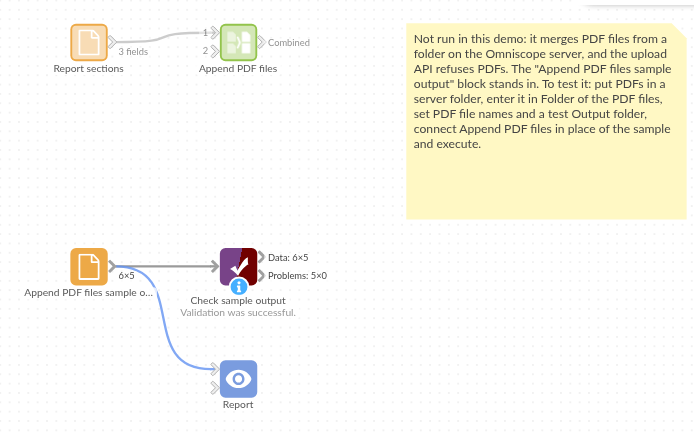
The demo project's workflow: the placeholder data, the block, and a Validate data check on the output.
Language and libraries
Python, with pypdf (BSD 3-Clause) and pandas (BSD 3-Clause).
pandas is part of Omniscope's Python environment. pypdf is listed in the block's dependencies, so Omniscope installs it with pip on first run if it is missing; the server needs access to the Python package index for that, or pypdf installed beforehand.
Tested
The block is covered by automated tests that run its script against a stand-in for Omniscope's Python API, on the sample PDFs: the page order, page counts and first pages, bookmarks with and without titles, numbers as titles, bookmarks already in a file, record order, a file chosen instead of the folder, full paths, missing files and file names, a file that is not a PDF, a password-protected file, empty input, missing options, and 400 files.